

Online access for patients & workflow for practices means happier patients, happier GPs. An @live_evergreen service. Open DMs.
- Tweets5.7K
- Following393
- Followers1.8K
- Likes411





ALT In bold at the top 'Top tip - askmyGP Academy!' A screenshot of the askmyGP Academy is below including a search bar with https://asmygp.uk/private/academy. Part of the screenshot has 'Registering a Patient' in black text in a black outlined box and the word "CLICK" diagonally underneath it. In a light green box as part of the screenshot text says: 'Review our collection of on-screen, step-by-step guides to walk your through the features and functions of our system!' The Evergreen Life logo is in the bottom right corner.
![askmyAccountManager in bold. Then in normal text: 'There's lots of other great features which can really help to maximise your workflow efficiencies, which you may not currently be taking advantage of, such as:' Next to a green tick: [in bold] Campaigns and Cohorts - 'Target a cohort of patients to have them complete a specific actions, such as providing information that you need to capture, or visiting a website you wish to signpost them to' Next to a green tick [in bold 'Networks - 'Share' your askmyGP requests with other care providers within your network to collaborate, or [in bold] 'Transfer' [in normal text] ownership of requests to refer patients onwards for management elsewhere within your network. Next to a green tick [in bold] 'Writeback' [in normal text] 'Automate the filing of askmyGP requests to your clinical record system at the push of a button!' [In bold] Ask the account management team if any of the above are of interest!' Evergreen Life logo's in the bottom right.](https://pbs.twimg.com/media/GB4WSXzaYAAq4yu.jpg?name=orig)
ALT askmyAccountManager in bold. Then in normal text: 'There's lots of other great features which can really help to maximise your workflow efficiencies, which you may not currently be taking advantage of, such as:' Next to a green tick: [in bold] Campaigns and Cohorts - 'Target a cohort of patients to have them complete a specific actions, such as providing information that you need to capture, or visiting a website you wish to signpost them to' Next to a green tick [in bold 'Networks - 'Share' your askmyGP requests with other care providers within your network to collaborate, or [in bold] 'Transfer' [in normal text] ownership of requests to refer patients onwards for management elsewhere within your network. Next to a green tick [in bold] 'Writeback' [in normal text] 'Automate the filing of askmyGP requests to your clinical record system at the push of a button!' [In bold] Ask the account management team if any of the above are of interest!' Evergreen Life logo's in the bottom right.

ALT 'My profile' in bold at the top. Beneath in underlined bold text between two green question marks in green outlined circles is: 'Did you know you can quickly navigate to your own staff profile'. A screenshot of the My profile feature on the askmyGP platform is below on the right. Text to the left next to a green tick reads 'Selecting [in bold] 'Settings' then [in bold] 'My Profile' takes you directly to your staff record, where you an edit and update your profile.' Below next to a green tick text reads: 'Much faster than going to [in bold] 'Staff', then searching for yourself by name and selecting your profile. The Evergreen Life logo is in the bottom left.
!['Request Advanced Search' in bold. Then in normal text: If you were looking for a particular request, or wish to see a list of requests which meet a specific set of criteria, you can use the magnifying glass icon on the right-hand side to perform an advances search, allowing you to search against your entire request history. Beneath is a screenshot of the Advanced Search feature on the askmyGP platform. It includes a table saying: 'Assigned to - Search for requests 'assigned to' a specific user, or group. Include - Choose whether you include requests which are currently [in bold[ 'Waiting' and/or [in bold] 'Completed requests. Request ID - If you know the request ID you wish to retrieve, you can search it here to view the request in full. Date of birth - Search for requests pertaining to patients with a specific Date of Birth. Surname - Search for requests pertaining to patients with a specific Surname. Completed between dates - Search for requests 'completed between' specific dates.](https://pbs.twimg.com/media/GBD_K3sW8AAsVKC.jpg?name=orig)
ALT 'Request Advanced Search' in bold. Then in normal text: If you were looking for a particular request, or wish to see a list of requests which meet a specific set of criteria, you can use the magnifying glass icon on the right-hand side to perform an advances search, allowing you to search against your entire request history. Beneath is a screenshot of the Advanced Search feature on the askmyGP platform. It includes a table saying: 'Assigned to - Search for requests 'assigned to' a specific user, or group. Include - Choose whether you include requests which are currently [in bold[ 'Waiting' and/or [in bold] 'Completed requests. Request ID - If you know the request ID you wish to retrieve, you can search it here to view the request in full. Date of birth - Search for requests pertaining to patients with a specific Date of Birth. Surname - Search for requests pertaining to patients with a specific Surname. Completed between dates - Search for requests 'completed between' specific dates.

ALT 'One Click Copy' in bold. Underneath in normal text is 'You may have noticed that the [in bold] 'Born' and [in bold] 'NHS/CHI Number' [back to normal text] fields in the patient ribbon at the top of each request have dotted lines underneath them. Screenshot of these on the askmyGP platform. Underneath text reads: 'These dotted lines indicate that the field can be clicked, to immediately copy the value to your clipboard, you can then paste the value into the clinical system to quickly retrieve the patient's record. Screenshot of the One Click Copy functionality in the askmyGP platform. The Evergreen Life logo is in the bottom right.

ALT 'Request hot links' in bold at the top. Underneath in normal text: 'You are probably already using the 'Previous Requests' section to see a condensed view of older askmyGP requests relating to the same patient.' Screenshot of the feature in the askmyGP platform. Underneath is the text 'But you can use the request hot link at the top of the request you are previewing, to view the request in full (including any attachments).' The Evergreen Life logo is in the bottom right corner.

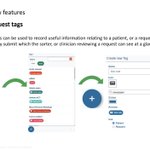
ALT Patient and request tags in bold at the top. A white label icon in a blue circle next to text 'Tags can be used to record useful information relating to a patient, or a request that they submit which the sorter, or clinician reviewing a request can see at a glance.' Screenshot of this feature in the askmyGP platform underneath. The Evergreen Life logo is in the bottom right.

ALT 'Patient and request tags continued' in bold at the top. Text underneath in bold 'Patient Tags' then in normal text 'applied on a per-patient basis. When a Patient Tag is used it remains permanently on their record until it is removed and every new incoming request for that patient will have the tag applied. Below is a screenshot on the askmyGP platform. Underneath is 'Request Tags' in bold then normal text 'Only apply to a single request rathe r than every request submitted by that patient.' Then another screenshot of the feature in the askmyGP platform. The Evergreen Life icon is in the bottom right corner.

ALT 'Patient and request tags continued' in bold at the top. Underneath in bold underlined text between two green question marks in green outlined circles text: 'Did you know you can filter the request list by requests with tags applied'. Underneath is a screenshot of the feature in the askmyGP platform. To the right next to a green tick 'The request lists (new, assigned etc) will now all be filtered by that specific tag'. Underneath is white text in a green box: 'Sick Note'. Underneath is black text ' Clicking - then a white 'X' in a green box - on the lozenge at the top of the screen will clear the filter and show all requests again.' The Evergreen Life logo is in the bottom right corner.

ALT Open request count bubbles. [In bold] 'Number of open requests for this patient (i.e. multiple requests relating to the same patient.' Underneath is the next 'OR [in bold] The number of requests created by this user [in bold] (i.e care homes on behalf of residents)' [In bold underlined] 'Did you know you can click these blue bubbles to filer request lists?' between two green question marks in green outlined circles. A screenshot of the feature in the askmyGP platform. 'Now you can quickly see all requests relating to/raised by that specific user. To remove the filter, simply click the 'x' on the lozenge at the top of the list.' The Evergreen Life logo is in the bottom right corner.

ALT Message read status icons continued. You've probably seen the various bubbles and icons within askmyGP, but do you know what they all mean? A blue person icon in a box next to text 'Assigned to an individual' Underneath are 3 people icons in a box next to text 'Assigned to a group'. To the right is a box with a blue dot in the top right next to text 'Unassigned/New'. Underneath is a blue tick in a box next to text 'Completed'. Underneath is 'Requests' in white text in a blue box with a blue '4' in a white box next to text 'Number of new unassigned requests, or responses to existing request which you have not yet read.' Underneath is 'Filing issues' in white text in a blue box with '2' in white text in a red box next to text 'Number of 'failed' filings, or requests which are 'Pending' filing.' The Evergreen Life logo is in the bottom right.

ALT Message read status icons on the askmyGP platform. 'You've probably seen the various bubbles and icons within askmyGP, but do you know what they all mean? Orange speech bubble icon with three white dots inside with the text underneath 'New/unread message from patient', a green plus icon, a white speech bubble icon with text 'Patient HAS NOT [bold underlined] yet read all messages'. A green speech bubble icon with text 'Patient HAS [bold underlined] read all messages from the practice' underneath. Green equals sign. Orange speech bubble icon with three white dots inside next to a white speech bubble icon next to text: 'You have an UNREAD [underlined bold] message from the patient and the patient HAS NOT [bold underlined] read all messages'. Underneath is an orange speech bubble icon with three white dots inside next to a green speech bubble icon next to text 'You have an UNREAD [bold underlined] message from the patient and the patient HAS [bold underlined] read all messages.'

ALT A screenshot of the assign screen filtering feature on askmyGP platform. On the left reads: Search for a user by name. Quickly find a specific person or group to assign to. Will also return users who are not currently working according to tehri rota (away). On the right reads: Show 'All' users. Returns a list o all assignable users, including hose who are 'away'. Can quickly be toggled 'on/off to flick between 'all' and 'available' users. The Evergreen Life logo is in the bottom right.
